
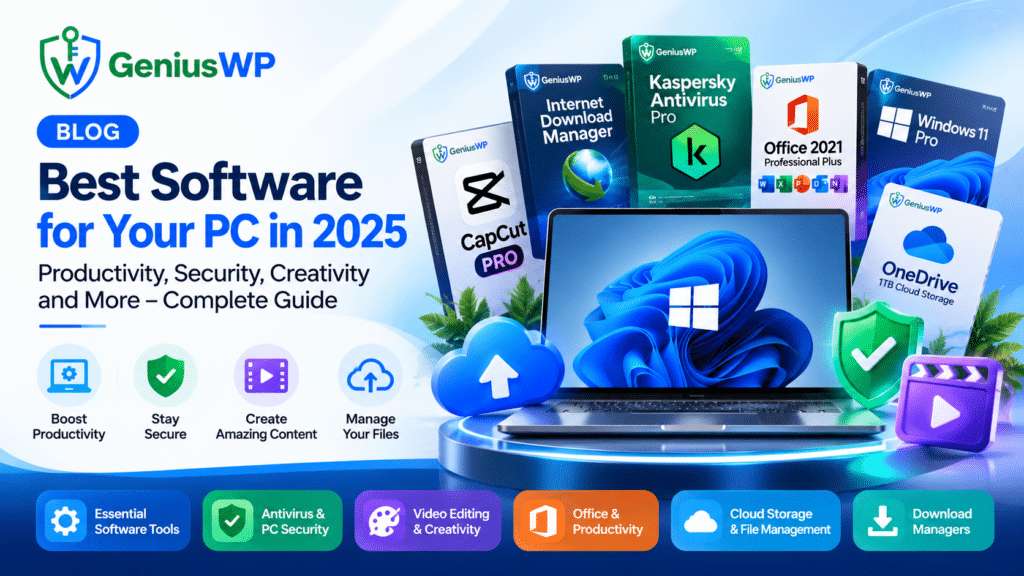
Essential software for a Windows PC usually comes down to five things: a supported version of Windows, an office suite, security software, cloud storage for your files, and a few everyday utilities such as a download manager. The right combination depends on your hardware, your work and your budget, so it helps to decide in that order instead of installing everything at once.
This checklist explains what each category does, what to verify before you buy a licence or subscription, and where the matching options in the GeniusWP Software category fit in. It is written for home users, students, freelancers and small offices, including readers in India.
What counts as essential software on a Windows PC?
Essential software is the set of programs a computer needs to be usable, safe and productive every day. Most people need these layers:
- Operating system: Windows itself, which should be a version Microsoft still supports.
- Productivity software: an office suite for documents, spreadsheets and presentations.
- Security software: protection against malware, unsafe downloads and online threats.
- Cloud storage: online space for files you want to reach from more than one device.
- Utilities: smaller tools, such as a download manager, that save time on repeated tasks.
Creative tools such as video editors or design apps are optional extras. Add them when your work calls for them.
Quick comparison: what to check in each category
The table summarises the main question for each category and links to the related listings in the GeniusWP Software category. Always open the product page for current options, terms and requirements.
1. Operating system: Windows 11 or Windows 10?
Everything else sits on top of Windows, so start there. Microsoft ended support for Windows 10 on 14 October 2025. A Windows 10 PC still runs, but it no longer receives regular security updates or Microsoft technical support. For most people choosing a licence today, a supported version such as Windows 11 is the safer starting point, provided the hardware qualifies.
Check your hardware first
Microsoft publishes the minimum requirements for Windows 11 on its Windows 11 requirements page. They include a 1 GHz or faster processor with two or more cores on a compatible 64-bit chip, 4 GB of memory, 64 GB of storage, UEFI firmware with Secure Boot capability and TPM version 2.0. Windows 11 Home also needs an internet connection and a Microsoft account to finish setup. If your PC falls short on any of these, check the exact requirements before you buy a licence.
Home or Pro?
The Windows 11 Home licence options on GeniusWP cover OEM and Retail choices, and the listing asks buyers to check the supported device count and warranty before purchasing. Pro suits people who need business-oriented features. The Windows 11 Pro licence listing describes BitLocker Drive Encryption, Remote Desktop capabilities and the ability to join a domain or Microsoft Entra ID, plus a Home to Pro upgrade option. If you do not need those features, Home is usually enough for everyday use.
If your hardware cannot run Windows 11, the Windows 10 Pro listing is still available, but its own product page notes that Windows 10 no longer gets standard updates or security fixes from Microsoft. Weigh that carefully before choosing it.
2. Productivity: choosing an office suite
Almost every PC needs a word processor, a spreadsheet tool and a presentation app. Two questions matter most: how many devices you need to cover, and whether the version is still supported by Microsoft.
That second question is especially important right now. Microsoft’s end-of-support date for Office 2021 was 13 October 2026. Microsoft says there is no extension and no Extended Security Updates for Office 2021. The apps can keep working, but Microsoft no longer provides security fixes, software updates or technical support for them. If you are considering Microsoft Office 2021 Professional Plus, which is listed for 1 compatible Windows PC, factor that lifecycle into your decision.
The alternative in the same category is Microsoft Office 365 Pro Plus. According to its product page, it covers up to 5 compatible PC, Mac or mobile devices with online activation, and includes an account and initial password, 100 GB of OneDrive capacity and access to available updates. The page also asks buyers to review compatibility and account terms before purchase, which is good advice for any account-based product.
3. Security: do you need antivirus software?
Windows includes built-in protection through Windows Security, which uses Microsoft Defender Antivirus. Many people also choose a separate security product for extra features, a familiar interface or protection across a household. No security software can promise complete protection against every threat, so safe habits matter just as much as the tool you pick.
When comparing antivirus options, check these points:
- How many PCs or users the licence covers.
- How long the subscription lasts and what happens at renewal.
- Which features are included in the exact edition you are buying.
- Whether the product supports your version of Windows.
The Software category currently lists two antivirus subscriptions. Kaspersky Antivirus is listed as a one-year subscription for 1 user, and Quick Heal Antivirus Pro as a one-year subscription for 1 PC. Both listings say delivery follows order verification and that GeniusWP support can help with activation. One practical tip from Quick Heal’s own documentation applies to any antivirus: remove other antivirus programs before installing a new one, because running several together can cause system problems.
4. Cloud storage: more than extra space
Cloud storage lets you open the same files on a laptop, a desktop and a phone, and it can protect you if a drive fails. Keep in mind that syncing is not the same as backing up. If you delete a synced file by mistake, the deletion can follow you across devices, so keep a separate backup of anything important.
The Microsoft OneDrive 1TB Cloud Storage subscription is offered with a 1-year or 2-year option. The listing explains that activation is arranged using the email address you give at checkout, subject to account eligibility and the selected terms. If you need activation on a different email address, contact GeniusWP support before activation.
5. Utilities: a download manager for heavy downloaders
Utilities are small programs that remove friction from repeated tasks. A download manager is a good example if you regularly download large files, course videos or software installers over an unreliable connection.
The Internet Download Manager (IDM) licence is listed for 1 PC with 1-year and Lifetime options. Its product page describes download acceleration, pause and resume, scheduled downloads, browser integration, download categories and recovery of interrupted downloads, and says it suits Windows 7, 8/8.1, 10 and 11. Whatever tool you use, download installers only from sources you trust.
Creative tools: add them only if you need them
Video editing and design software are optional for most users. If your work leans toward design rather than video, our guide to Canva Pro price in India, plans and free trial options explains the differences between Free and Pro and what to verify before buying third-party offers.
What to check before you buy any software licence
Use this checklist before you complete a purchase:
- Compatibility: confirm your Windows version, processor, memory and storage meet the requirements for the exact product.
- Support status: look up whether Microsoft or the vendor still supports that version, and note any end-of-support date.
- Licence duration: know whether you are buying a one-year, two-year or longer licence, and what happens when it ends.
- Devices or users covered: check the number of PCs, users or devices in the listing.
- Included features: features can differ between editions, so confirm what your edition includes.
- Delivery and activation: read how the licence or account details are delivered and what activation involves.
- Support and policies: read the FAQ and the refund policy so you know where to turn if something goes wrong.
Example setups for different users
These examples show how essential software for a Windows PC changes with the user. They are starting points, not recommendations for every situation.
- Student with a new Windows 11 laptop: Windows is already installed, so focus on an office suite, cloud storage for assignments and a security plan for the laptop.
- Home user with an older PC: start by checking whether the hardware meets the Windows 11 requirements, then decide between upgrading the OS or staying on a supported setup.
- Freelancer or small office: prioritise Windows Pro features if you need them, an office suite that covers all your devices, and a clear backup routine.
Frequently Asked Questions
What is essential software for a Windows PC?
Essential software for a Windows PC includes a supported version of Windows, an office suite, security software, cloud storage and a few utilities such as a download manager. Creative tools are optional extras.
Do I need paid antivirus software on Windows?
Windows includes built-in protection through Windows Security. Some users add a separate antivirus product for extra features or to cover more than one PC. Compare the licence length, number of PCs covered and included features before choosing.
Is Windows 10 still safe to use?
Windows 10 still runs, but Microsoft ended support on 14 October 2025, so it no longer receives regular security updates or technical support. Moving to a supported version such as Windows 11 is generally safer if your hardware qualifies.
Is Office 2021 still supported by Microsoft?
No. Microsoft’s support for Office 2021 ended on 13 October 2026 with no extension and no Extended Security Updates. The apps can still open, but they no longer receive security fixes or updates.
Is cloud storage the same as a backup?
Not exactly. Cloud storage usually syncs files across devices, so deleting a file in one place can remove it everywhere. A backup is a separate copy you can restore from, so use both for important files.
What should I check before buying a software licence or subscription?
Check compatibility, support status, licence duration, the number of devices or users covered, the features included, how delivery and activation work, and the seller’s support and refund policies.
How does delivery and activation work at GeniusWP?
Delivery details are shown on each product page. In general, GeniusWP verifies your order and then provides the licence or activation details through the applicable digital delivery channel, and the support team can help with installation and activation. Read the specific listing for its terms.
Conclusion: build your setup in layers
The essential software for a Windows PC works best when you build it in layers. Start with a supported operating system, then add productivity, security, storage and utilities as your needs grow. Verify compatibility, support status and licence terms at each step rather than buying everything at once.
When you are ready to compare options, browse the full GeniusWP Software collection and read each product page carefully. For product updates and announcements, you can also join the official GeniusWP WhatsApp community.